
Configure an API Key for HolyCrab CLI
If your API Key is already configured and valid, skip to Use with Codex. Otherwise, follow the steps below. An API Key works like a private password for this computer. Keep it out of Codex chat, source files, screenshots, and messages.
Configure the API Key
1. Open the API Key page
Open HolyCrab API Access and sign in. Create a Key if you do not already have an active one.
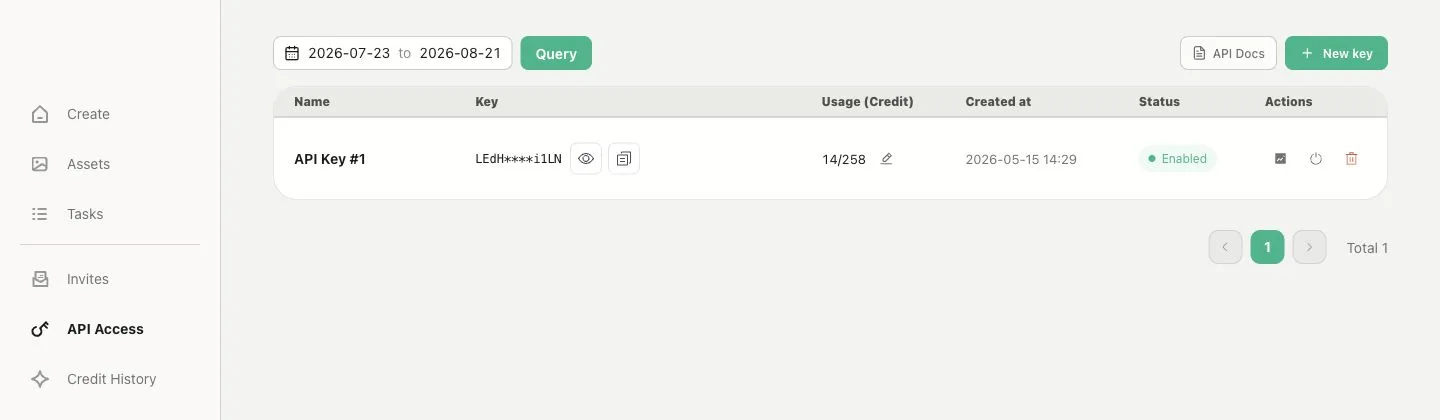
Use an active Key from API Access. The example image contains no usable secret.
2. Copy the Key
Use the page's copy button. Do not paste the Key into Codex or any chat.
3. Run setup
Return to PowerShell or Terminal, paste the command below, and press Enter.
4. Paste into the protected prompt
When the terminal asks for the API Key, paste it there and press Enter. No dots or characters may appear while you paste; that is normal and protects the Key.
5. Read the result
A successful result says the Key is configured and valid. You can rerun setup later to replace it with another Key.
Keep the Key safe
- Never send the Key to Codex, Claude Code, customer support, or a colleague.
- Do not include it in a screenshot or terminal recording.
- If it may have been exposed, revoke it on the API Access page and create a new one.
If it did not work
- If the Key is rejected, return to API Access and confirm it is active, then run setup again.
- If the configured Key belongs to the wrong account, create/copy a Key from the correct account and rerun setup.
- If an environment override warning appears, use the troubleshooting page instead of sharing the Key.