
Install HolyCrab CLI on macOS or Linux
This is the manual installation walkthrough. If you have completed one-click installation, continue to Configure your API Key. These instructions are for macOS and Linux only. On Windows, use the separate PowerShell page.
Before you start
- A Mac or Linux computer with internet access.
- Python 3.10 or newer and curl; the checks below show whether they are already installed.
- Codex or Claude Code should run under the same computer user.
Install step by step
1. Open Terminal
On a Mac, press Command + Space, type Terminal, and press Return. On Linux, open the app named Terminal from your applications menu.
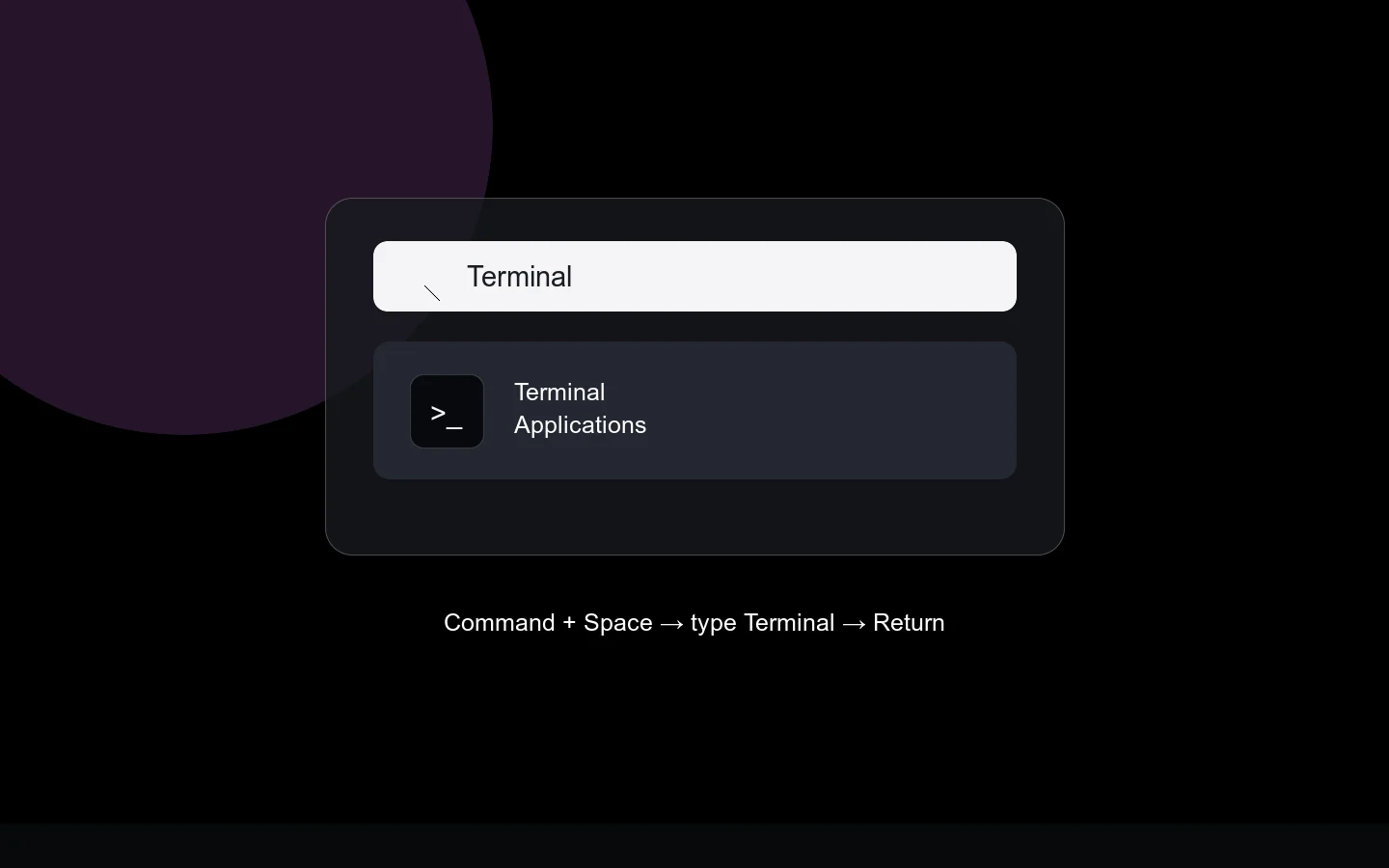
On macOS, open Spotlight and search for Terminal.
2. Check Python
Run the command below. A result starting with Python 3.10 or a higher number is ready.
3. Check curl
Run this command. If it prints curl version information, continue. If either check is missing, install it with your system's normal software manager before continuing.
4. Install HolyCrab
Paste the complete line below and press Return. The installer saves the PATH setting for future terminals and also activates it for this run.
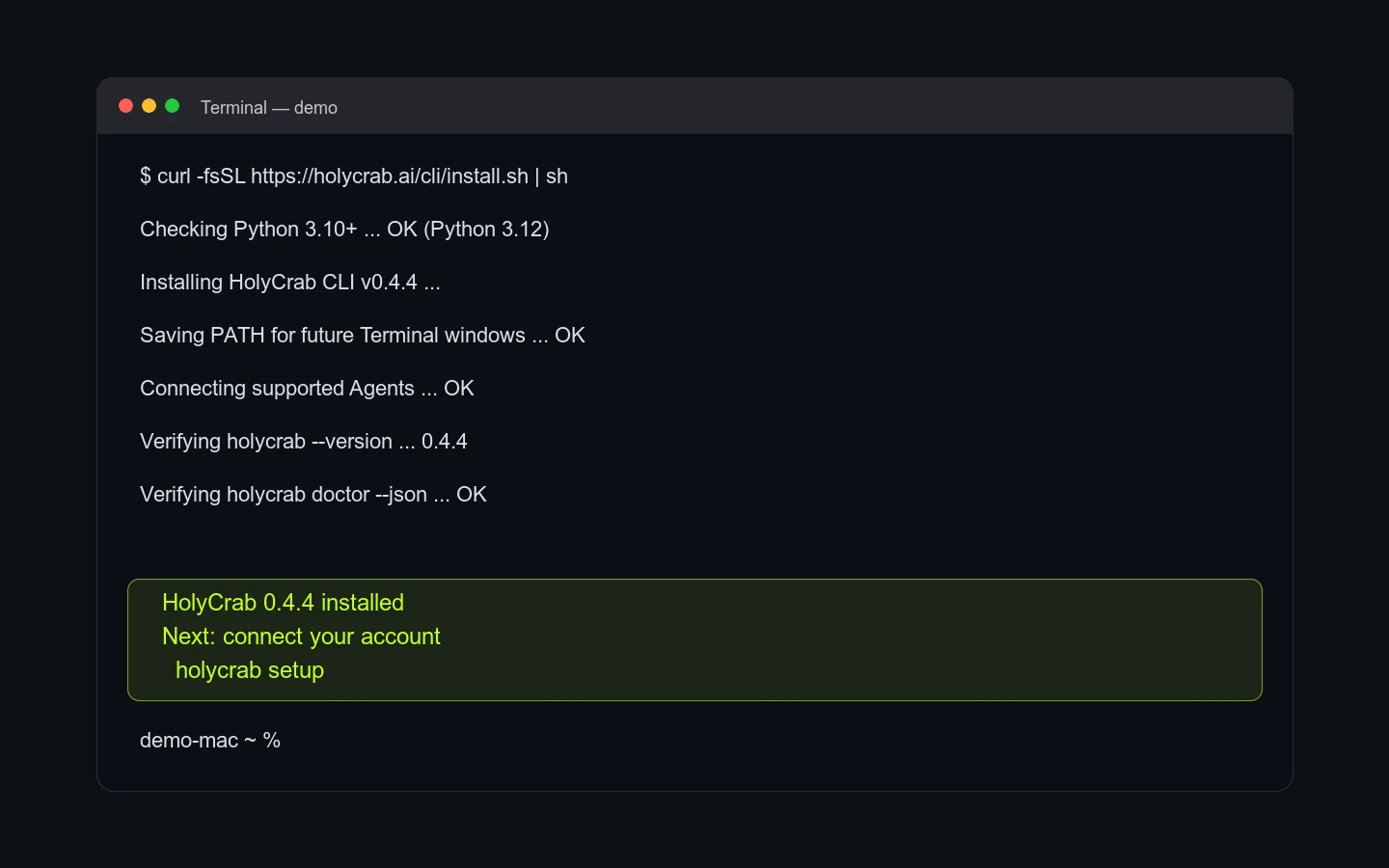
The installer should finish with HolyCrab 0.4.4 installed.
5. Run the local check
Run the command below and look for "ok": true. It is normal for the API Key check to say it is not configured yet.
If it did not work
- If
python3orcurlis missing, install it with your Mac/Linux software manager and rerun the checks. - If the installer succeeds but
holycrabis not found, close Terminal, open it again, and retry. - If it is still not found, rerun the installer and copy only the error text into troubleshooting.