
Install HolyCrab CLI on Windows
This is the manual installation walkthrough. If you have completed one-click installation, continue to Configure your API Key. Use Windows PowerShell for every command on this page. You do not need another terminal app or administrator rights.
Before you start
- A Windows 10 or Windows 11 computer with internet access.
- Permission to install software for your own Windows account.
- Close any screen-sharing session that could expose private information before setup.
Install step by step
1. Open PowerShell
Open the Start menu, type PowerShell, and choose Windows PowerShell. A blue or dark command window will open.
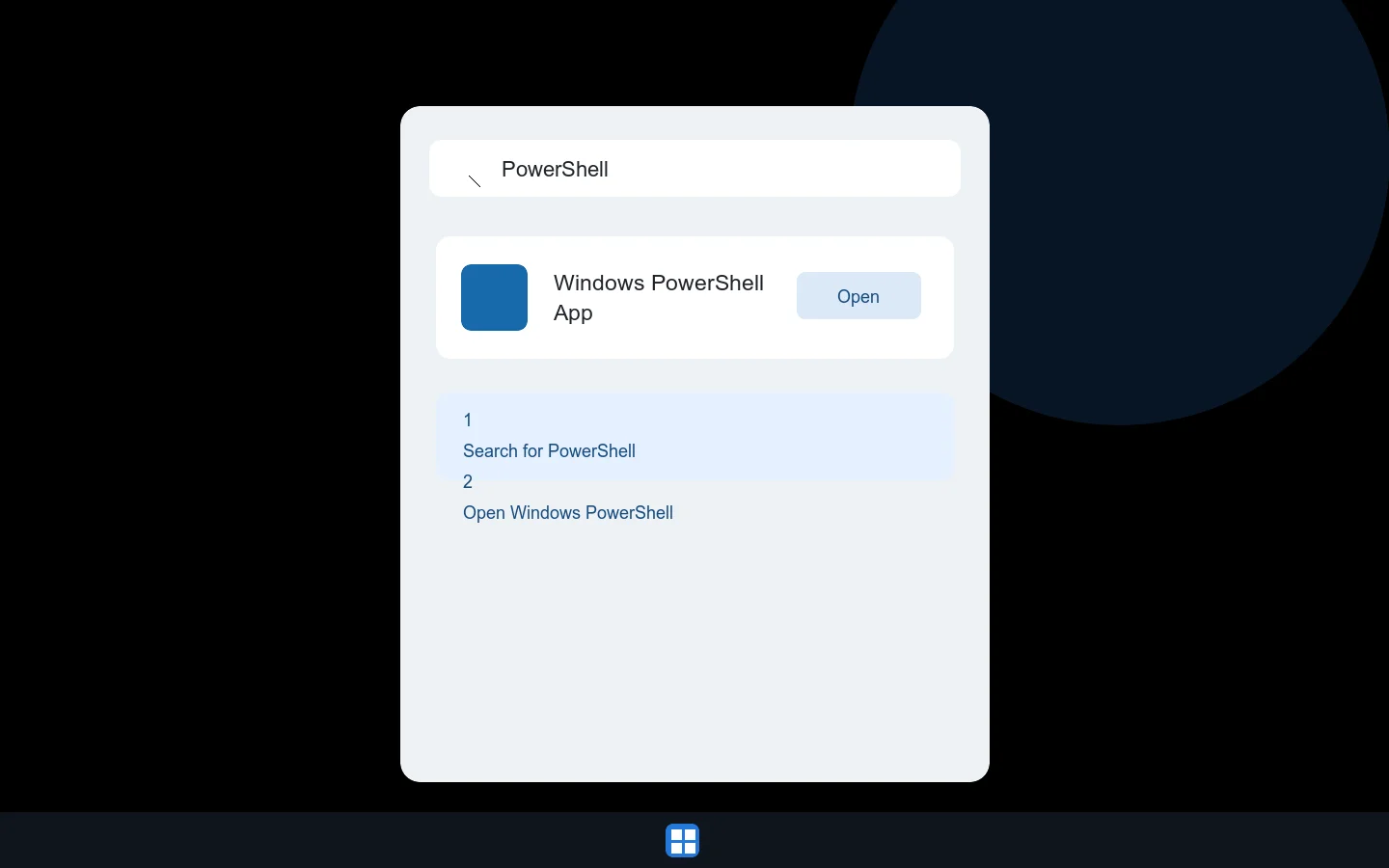
Search for PowerShell in the Windows Start menu, then open it.
2. Check Python
Paste the command below and press Enter. A result such as Python 3.12.7 is ready to use; any version lower than 3.10 must be updated.
3. Install Python only if it is missing
If PowerShell says py is not recognized, paste the command below. When installation finishes, close PowerShell, open it again, and repeat the Python check.
4. Install HolyCrab
Paste this entire single line and press Enter. It downloads the official installer, adds holycrab to your user PATH, and connects supported Agents found on this computer.
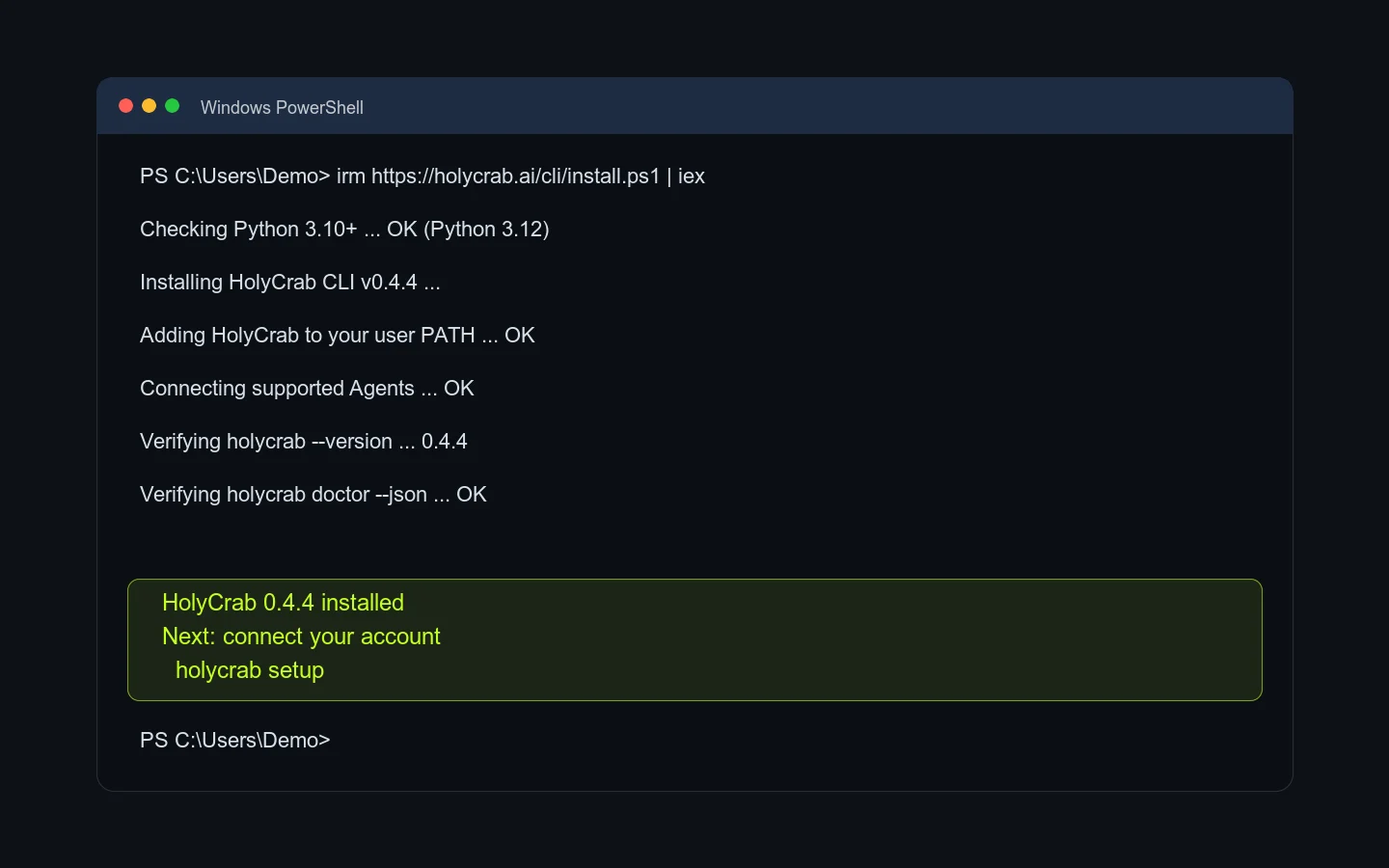
The final lines should say the installation completed and show HolyCrab 0.4.4 installed.
5. Run the local check
In the same PowerShell window, run the command below. Look for "ok": true. A message that the API Key is not configured is normal at this stage.
If it did not work
- If PowerShell says an unfamiliar Unix command is not recognized, you copied the macOS/Linux installer. Use the PowerShell installer on this page.
- If
holycrabis not recognized after a successful install, close PowerShell, open a new PowerShell window, and tryholycrab doctor --jsonagain. - If the check still fails, rerun the same installer once to repair managed files, then open troubleshooting.